EM2 Chemical Inventory
How to use the app
Find a bottle, scan its QR code, and keep its record up to date from your phone.
Open in PowerApps
01 / BROWSE
See what is in the lab
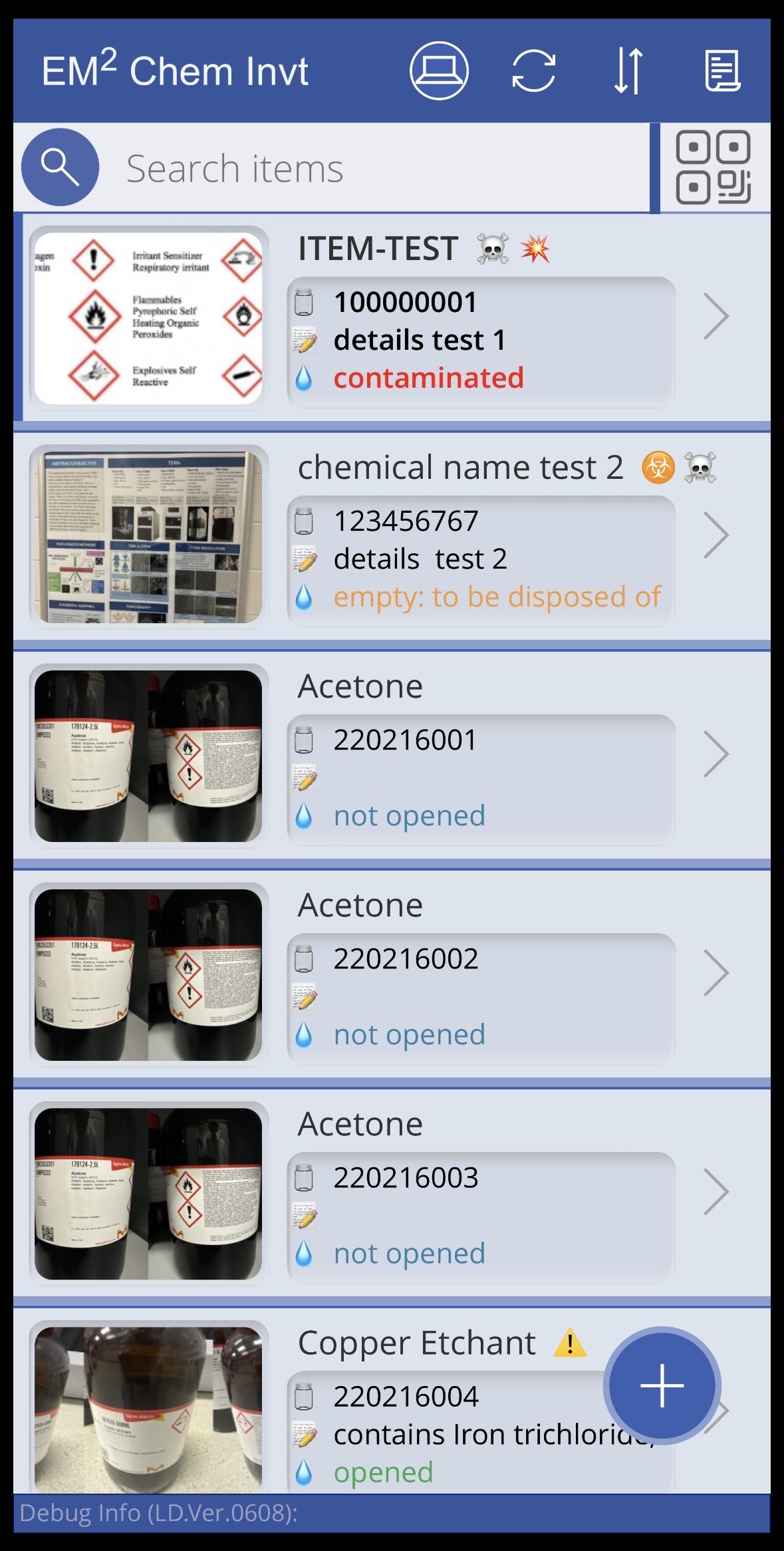
The gallery shows each bottle’s photo, chemical name, index, and status. Switch to table view from the top bar when you want a compact list.
02 / FIND
Search or scan a label
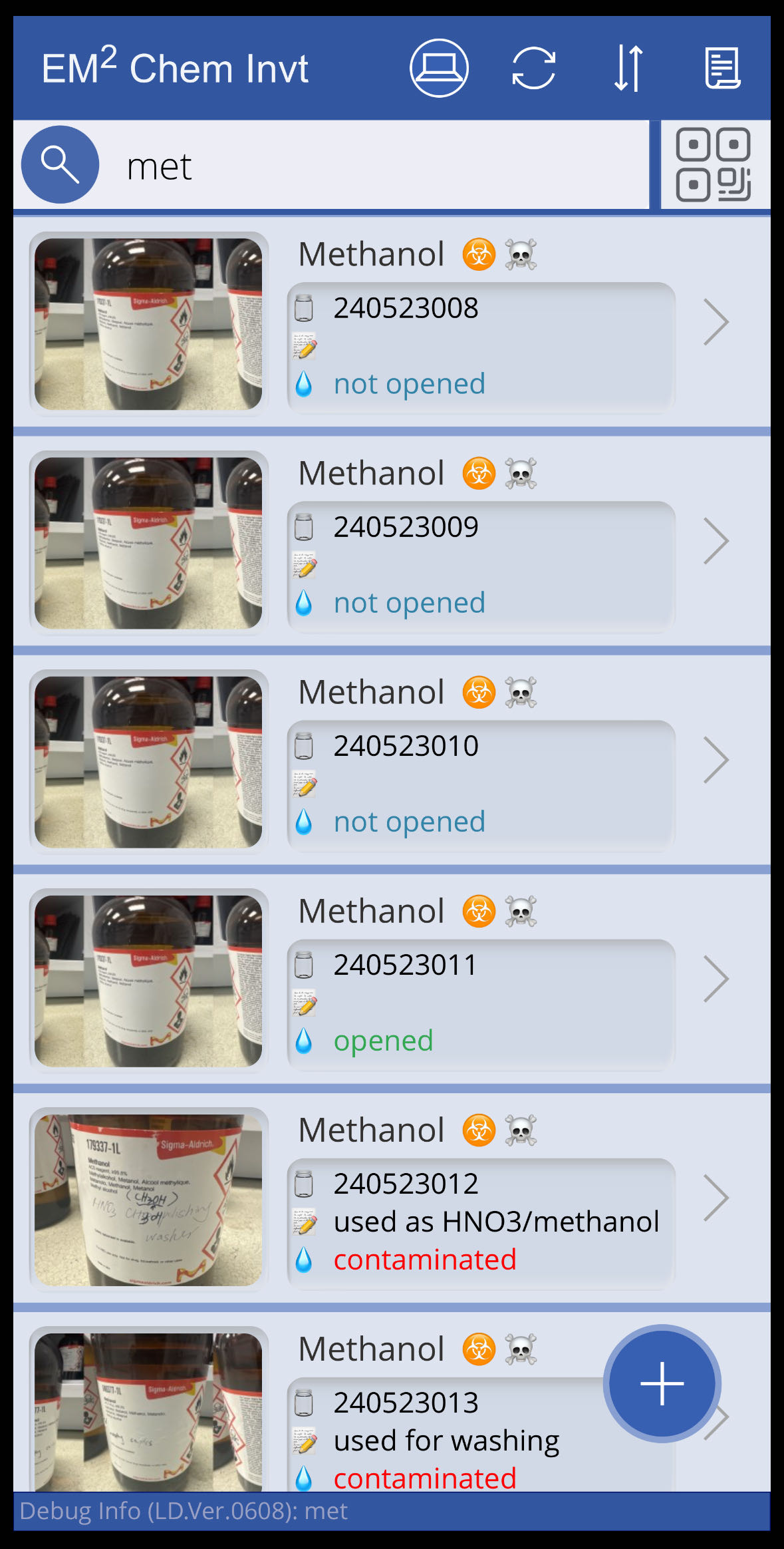
Enter a chemical name or bottle index in the search field. To look up a labeled bottle, tap the QR scan button beside the field and scan its code.
03 / UPDATE
Add or update a bottle
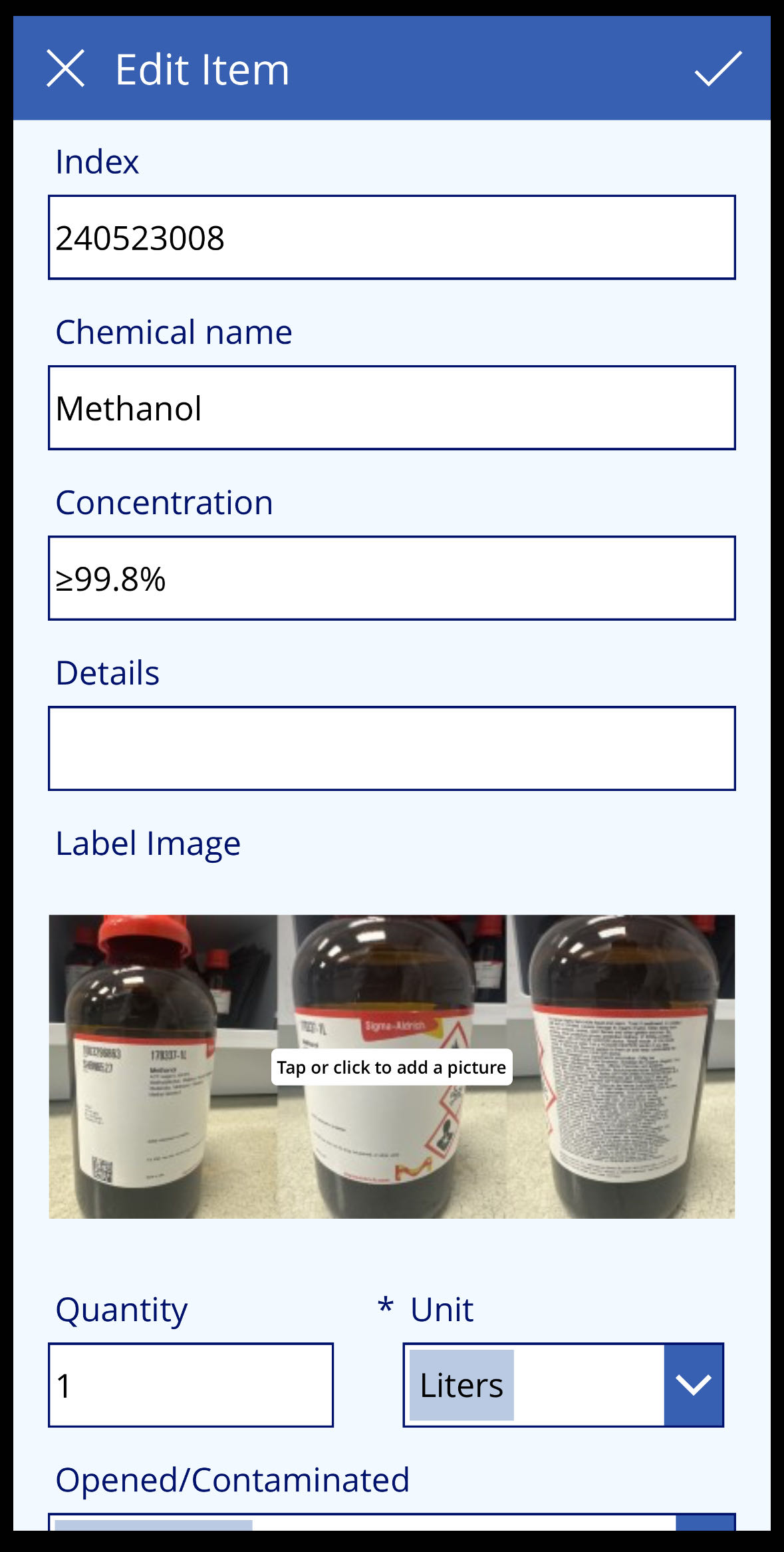
Use the plus button to add a record. Open an existing item to edit its information, label photo, quantity, or status, then save with the check mark.
LAB PRACTICE
Keep one record per bottle
- Give each bottle a unique index and attach its printed QR label.
- Photograph the complete product label and add as much information as you can.
- Update the status when a bottle is opened, emptied, or contaminated.
- Avoid deleting records created by others. Tell the lab manager if a record is deleted by mistake.